Quickstart
This guide will get you set up and ready to use Test Garden. We'll cover how to add a website property, connect it via our Chrome Extension, record your first test flow, and verify the replay results.
1. Add your website property
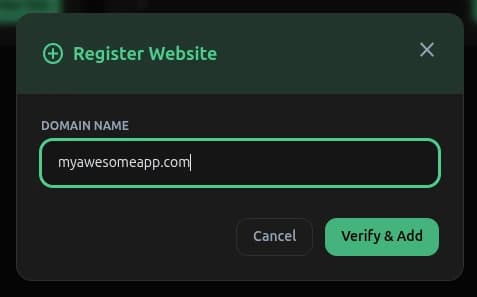
Log in to your Test Garden dashboard and click "Add New Website". Enter your domain name (e.g., myawesomeapp.com).
2. Install the Chrome Extension
To enable zero-code interaction recording, element inspection, and authentication bypass, you must install the Test Garden Helper Chrome Extension:
- Visit the Test Garden Helper page on the Chrome Web Store.
- Click "Add to Chrome" to install it.
3. Record your first test flow
You can start recording tests in two ways:
- From the Properties Page: Go to Properties (
/dashboard/properties) and use the quick action panel on the website card. Enter your starting path (e.g.,/or/dashboard) and click "New Test". - From the Tests Library: Go to Tests (
/dashboard/library), click "New Test" at the top right, choose your property, enter the starting path, and click "Record Test".
Both options will open the Workspace:
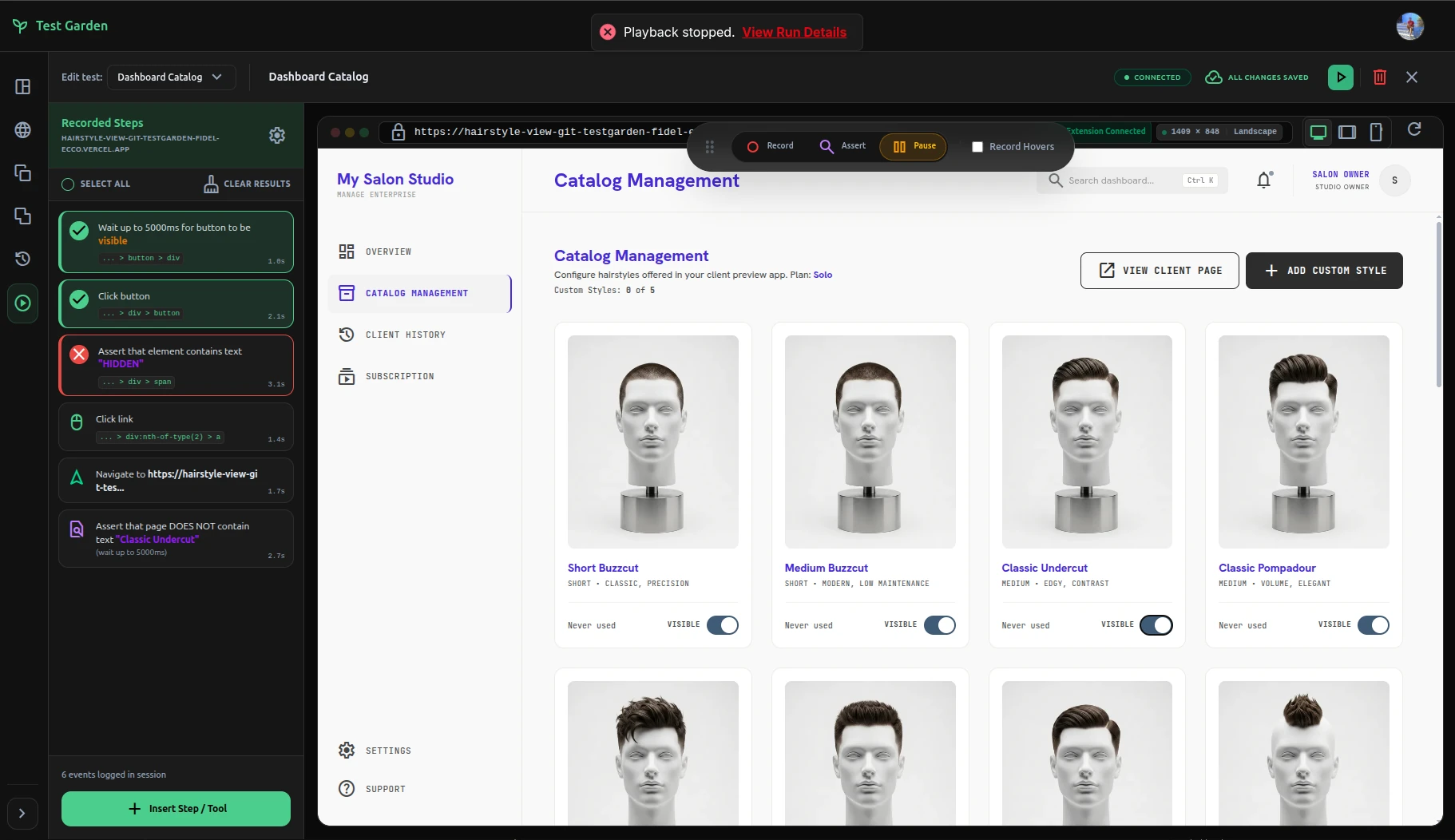
- Interact with your page as a user would (clicking clicks, filling forms, scrolling).
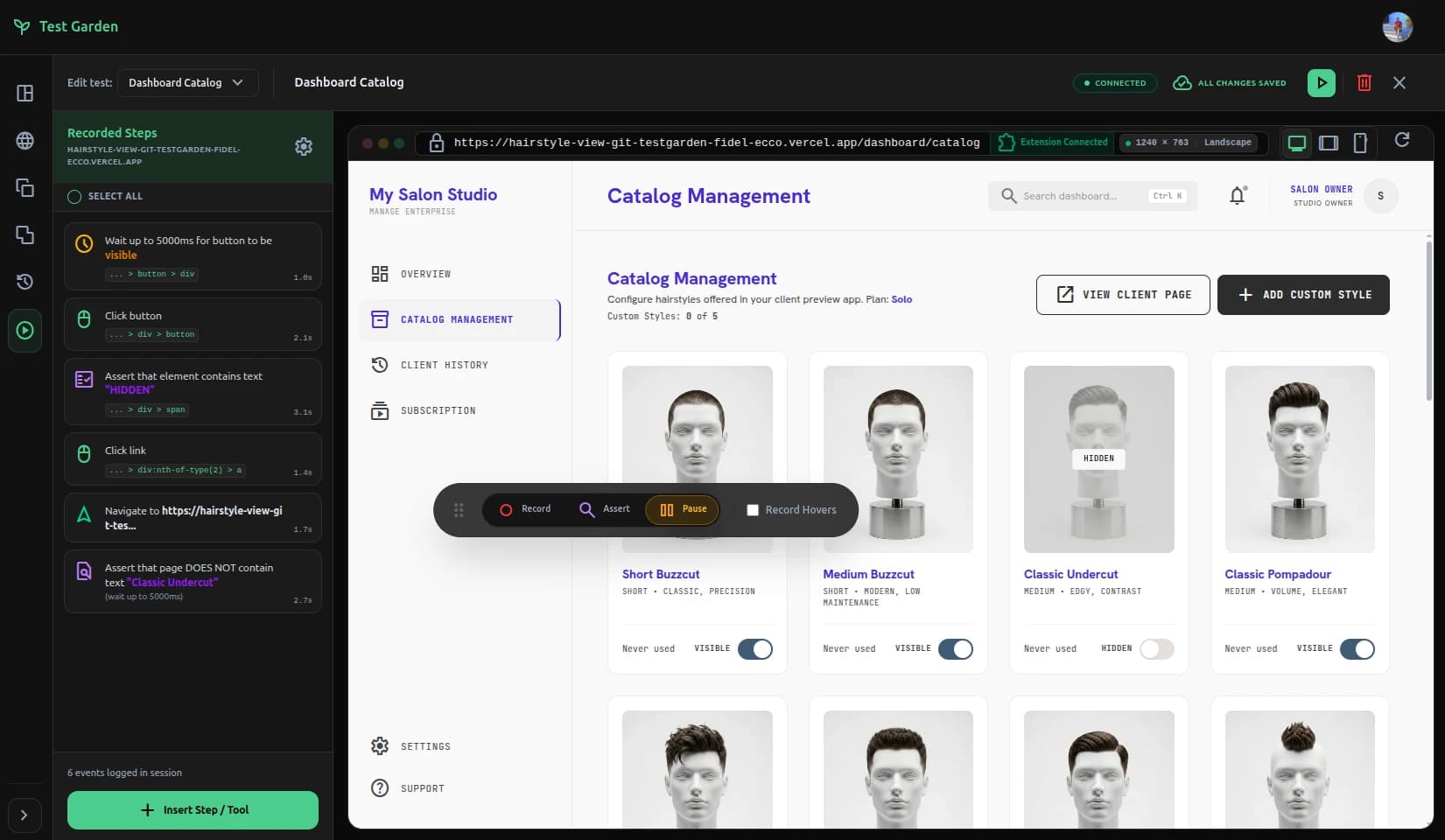
- Assert page elements by clicking Assert in the floating toolbar, hovering over an element, and verifying its text or CSS styles in the sidebar.
- Use the Auth Role dropdown in the Workspace header to test and record multi-user auth bypass flows (Guest, Admin, or Customer) - available natively for Supabase projects.
- Click Save when finished.
4. Run the replay and audit results
You can run your tests and verify the replay results at any time:
- From the Workspace: Click the "Play" icon on the Steps Sidebar header to manually trigger playback.
- From the Tests Library: Next to any test in the table, click "Run Test" to execute it instantly in the workspace.
- From the Test Runs History: Go to Test Runs (
/dashboard/runs), click "Run Test" at the top right, select the test or suite you want to run, and click "Run Now".
Test Garden will reset the viewport iframe to the starting URL, perform the recorded events programmatically, handle auth bypass dynamically (for Supabase domains), and highlight any failures or failed assertions.