Test Runs & Auditing
Every time a recording session or test suite is executed, Test Garden creates a permanent Test Run log. These runs store execution durations, pass/fail status, and precise error logs for auditing.
Reviewing Run History
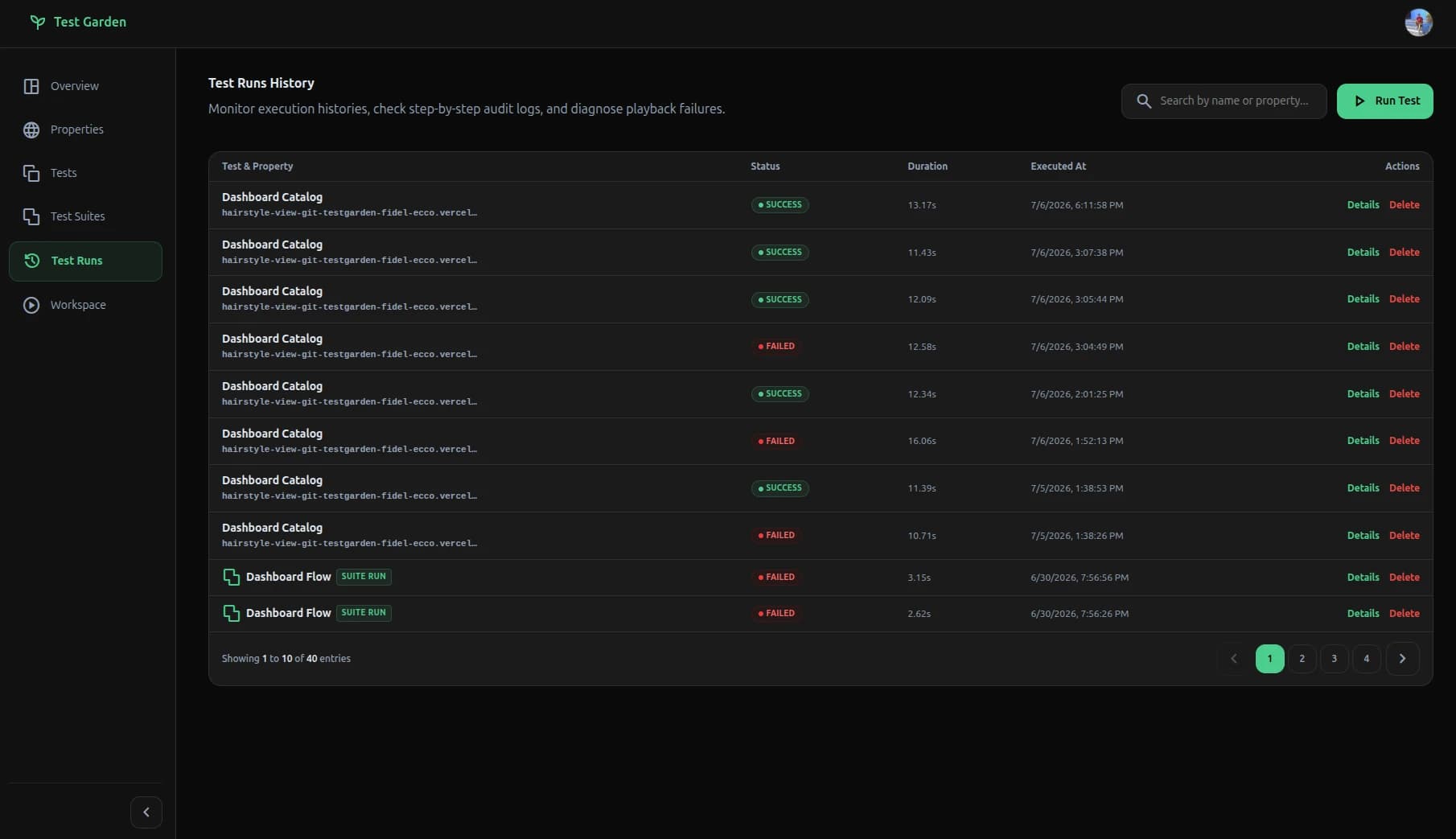
Navigate to the Test Runs tab /dashboard/runs to view your execution log table:
- Status Badges: Displays
success(green),failed(red), orrunning(blue). - Execution Metadata: Lists the execution device viewport (e.g.
desktopormobile), duration in milliseconds, and the exact timestamp. - Suite Association: Runs that were executed as part of a suite will display an expandable grouping element.
Launching Test Executions
You can execute test sessions and suites directly from multiple areas in the dashboard:
- From the Test Runs Page: Click the primary "Run Test" button at the top right of
/dashboard/runs. A modal will open allowing you to select between a Single Test or a Test Suite. Once confirmed, Test Garden launches the execution automatically. - From the Tests Page: In the library table (
/dashboard/library), click the "Run Test" action next to any test row to execute it instantly. - From the Test Suites Page: Click the "Run Suite" button on any suite card.
All of these execution entry points automatically redirect you to the Workspace with auto-play parameters (e.g., run_test=true or run_suite=true), showing the playback step-by-step in real-time.
Detailed Step Audits
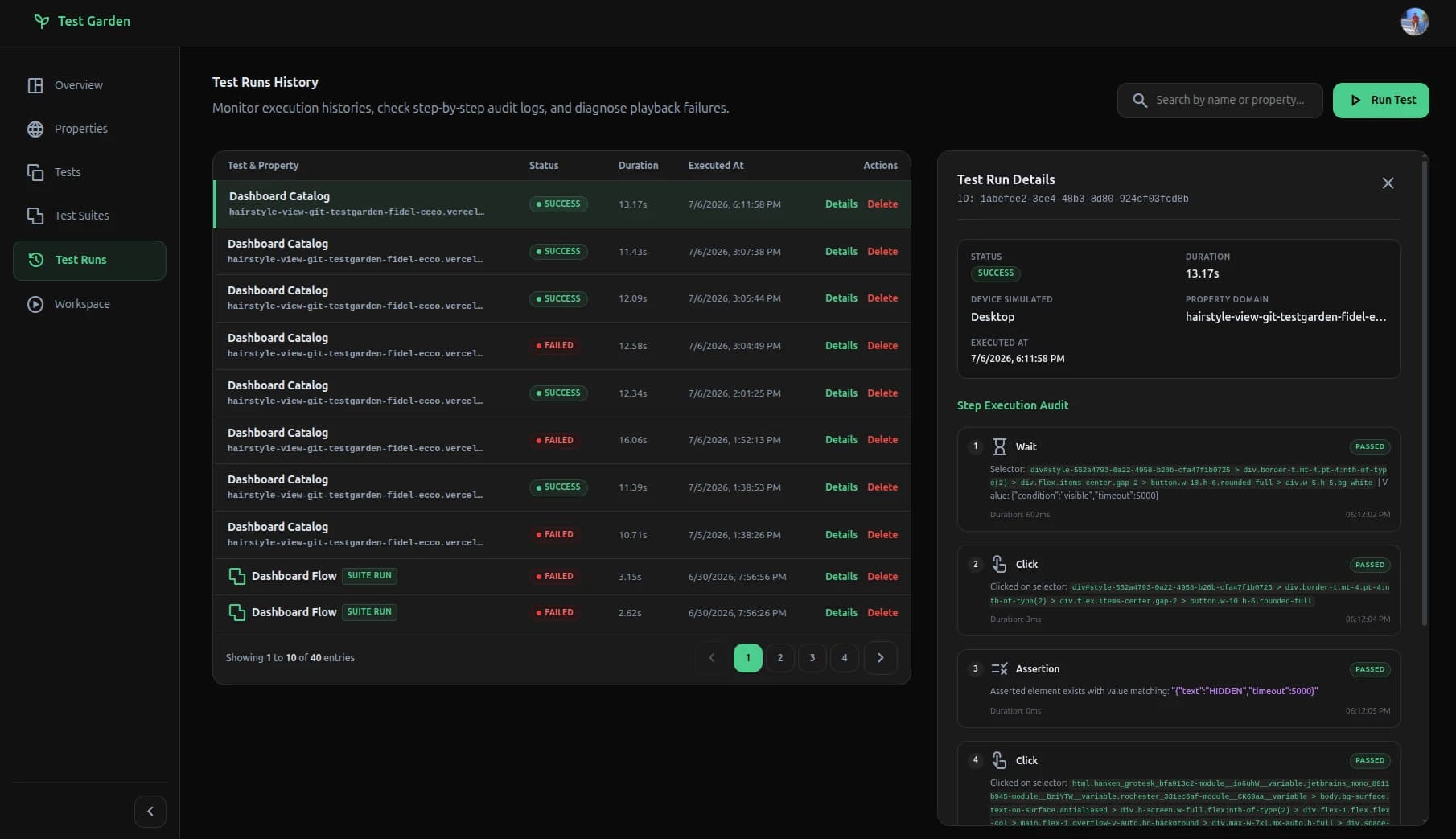
Click on any test run row to slide open the Step Audit Details Drawer:
- Passed Steps: Displays a green checkmark indicating successful click or assertion validation.
- Failed Steps: Displays a red cross, the exact DOM selector that failed, and the runtime exception (e.g.
Element not found within 5000msorAssertion failed: expected value "Log Out", got "Log In"). - Skipped Steps: If a step fails, all subsequent steps in the run are automatically skipped to prevent cascade failures.
Background Tab Notifications
If you run long-running test suites, you don't need to stay on the tab:
- If the workspace is running in a background tab (
document.hiddenis active), and a step fails, the system triggers the Web Notifications API to send an OS-level desktop alert. - Simultaneously, the browser tab title (
document.title) flashes between⚠️ TEST FAILEDand the original app title to draw your attention.
Managing Account Deletions & Cleanup
In the Settings /dashboard/settings page, the Danger Zone contains a high-security account deletion workflow:
- When you confirm deletion, Test Garden triggers a server-side handler.
- It retrieves your Stripe Customer ID and automatically cancels all active subscriptions (to prevent future charges).
- If subscription cancellation fails, it logs an alert to
fidel@testgarden.dev. - It deletes your auth record from Supabase, which triggers database-level cascade deletes across all related tables (
websites,recording_sessions,test_steps,test_runs,test_suites).