Test Suites
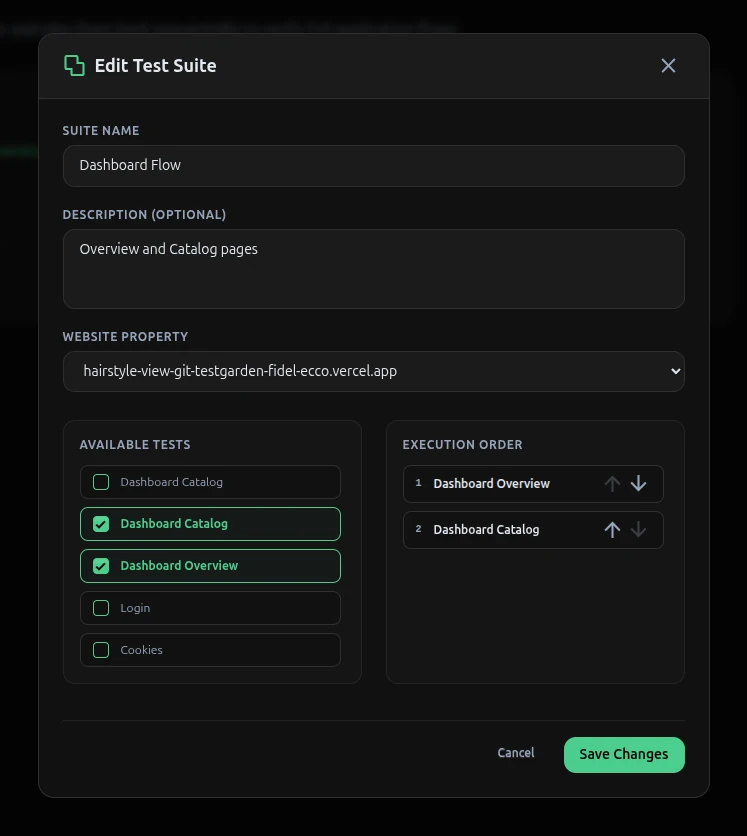
As your web application grows, you will want to group individual test sessions into logical categories (e.g. "Core Checkout Flow" or "Settings Page Audits") and run them sequentially. Test Suites allow you to bundle multiple recordings together and run them in batch.
Creating a Test Suite
- Navigate to Test Suites
/dashboard/suites. - Click "Create New Suite".
- Choose the verified Website Property this suite belongs to.
- Input a descriptive name and description.
Sequencing Tests via Drag & Drop
Inside the Suite configuration panel, you will see a list of all recorded sessions associated with your property:
- You can add tests to your suite and organize their execution sequence.
- Test Garden implements a native HTML5 Drag & Drop interface, letting you drag single or multiple selected test rows to reorder them.
- When you release a dragged row, the backend performs a contiguous batch sequence update (in the
test_suite_sessionsorder index) to ensure there are no gaps in the execution queue.
Executing a Test Suite
You can execute a test suite in two ways:
- From the Test Suites Page: Click the "Run Suite" button on the suite card.
- From the Test Runs Page: Click the primary "Run Test" button at the top right, select the "Test Suite" tab in the modal, choose your suite, and click "Run Now".
When you trigger a suite execution, Test Garden sequentializes the runs: it resets the iframe, plays back all steps for the first recording session, and immediately proceeds to the next session in the queue. The final results are compiled into a unified Test Suite Run log showing each inner test's detailed execution.